§ the idea
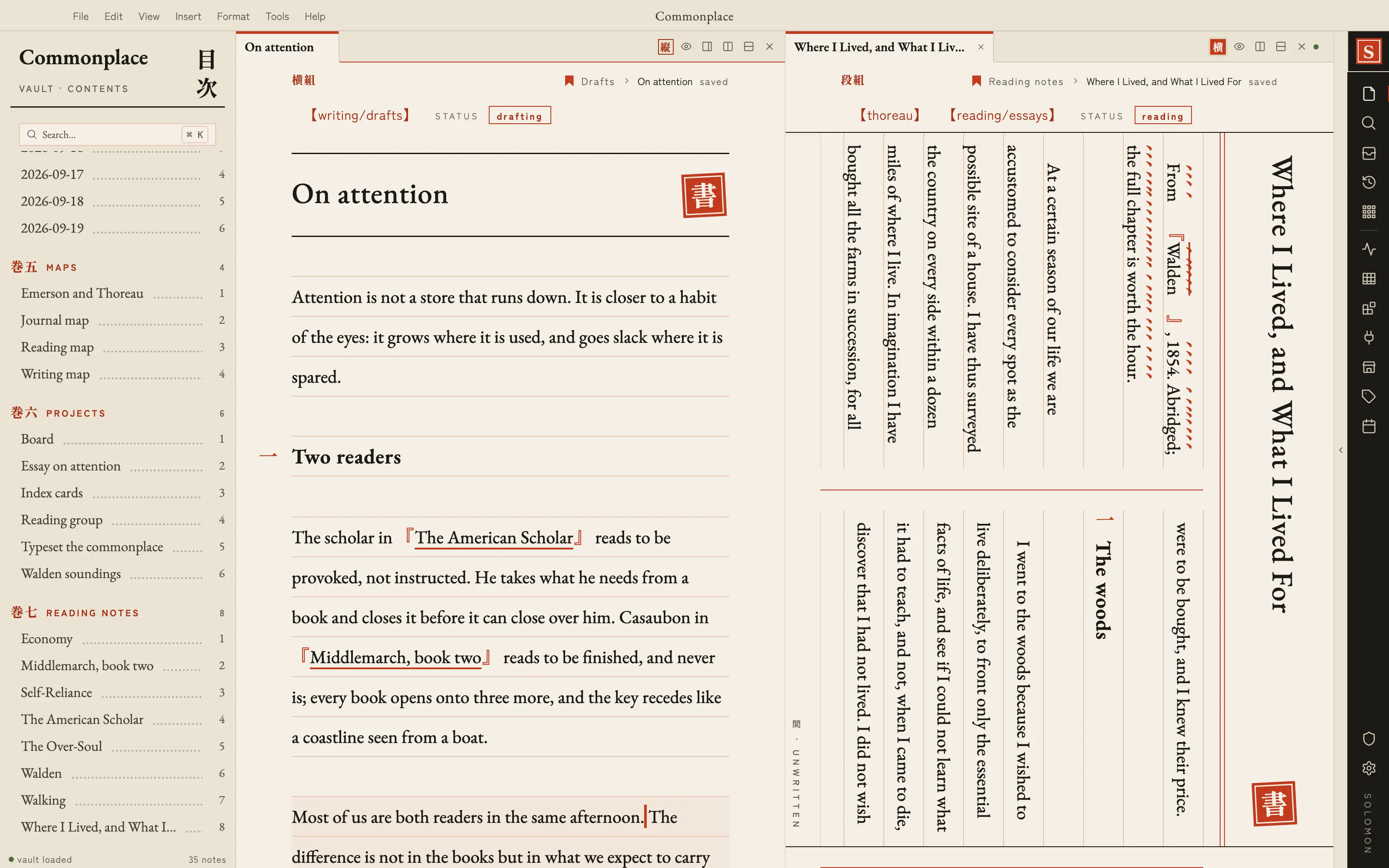
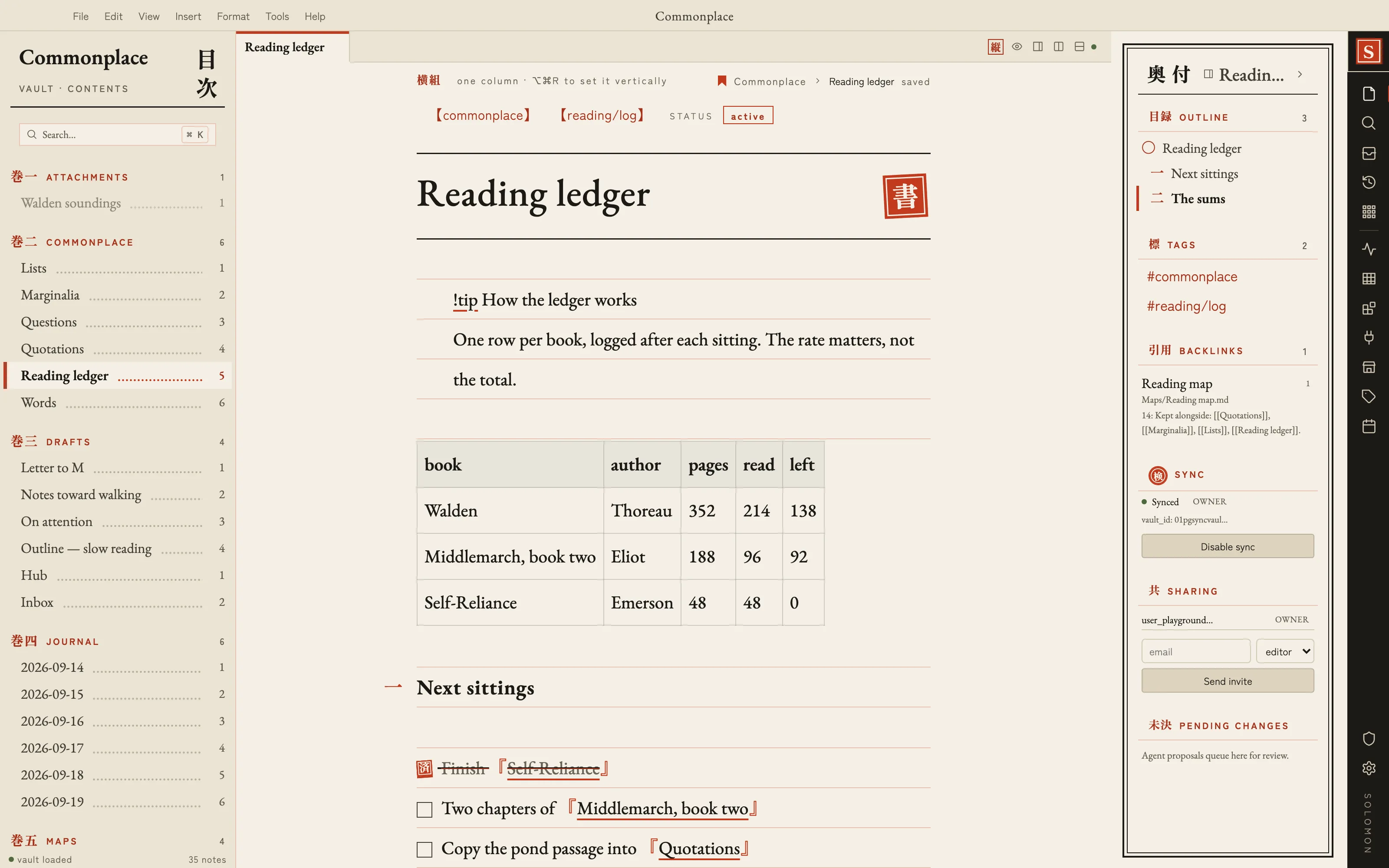
Solomon set like a Japanese magazine page: washi paper, sumi ink and one vermilion seal. The file tree becomes a contents leaf, the per-note panel a double-ruled colophon, the rail a dark spine bound on the right, and in the reading view your note turns ninety degrees and runs top to bottom in keisen-ruled tiers, read from the right.
Install it
- Open the Store from the left rail in Solomon (or press ⌘9) and choose Themes.
- Find Tategaki and click Install. It lands in your vault’s
Themes/folder. - Choose it under Settings → Appearance. The default look is one click away there too.
Solomon is a free download for macOS. Get the app
- Mode
- Light only
- Type
- EB Garamond
- Zen Kaku Gothic New
- Palette
- Credits
- SIL Open Font License 1.1
Everything this package ships is a SIL Open Font License 1.1 typeface. There is no image in it: every seal, rule, bookmark ribbon and ring is drawn in CSS (flat fills, borders, gradients, clip-path), and the washi is a flat colour — no scanned or simulated paper. Nothing is fetched at runtime.