§ the idea
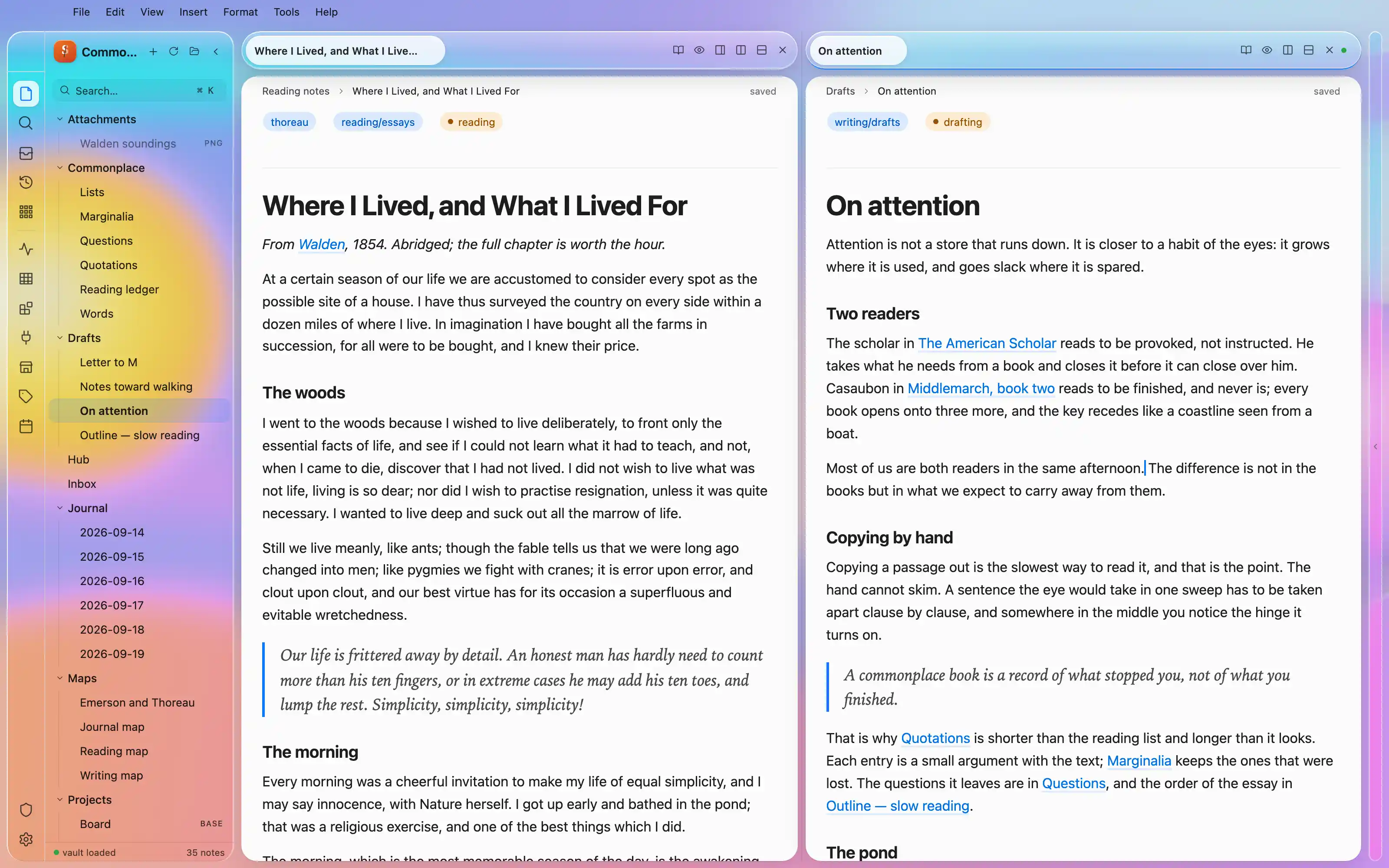
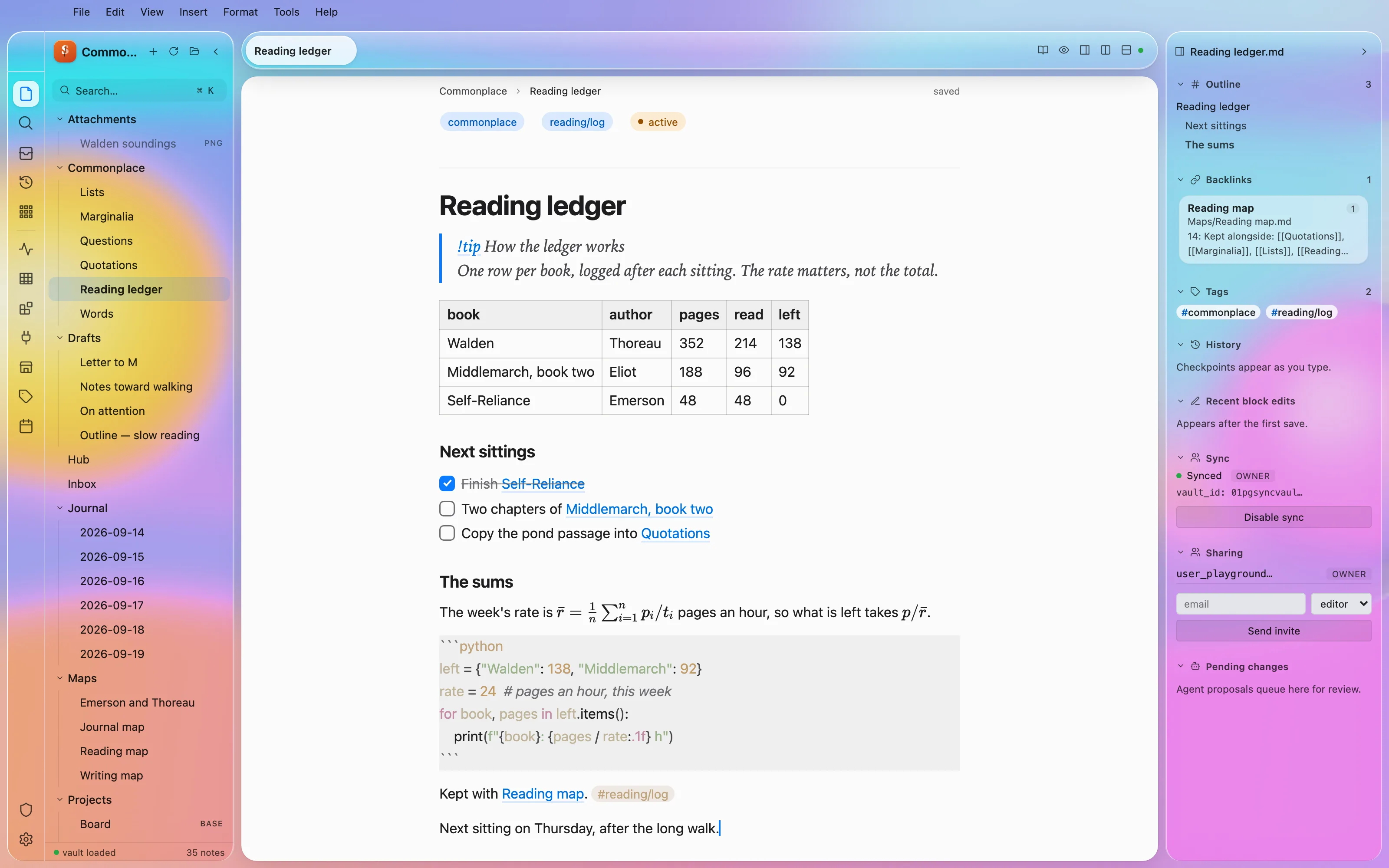
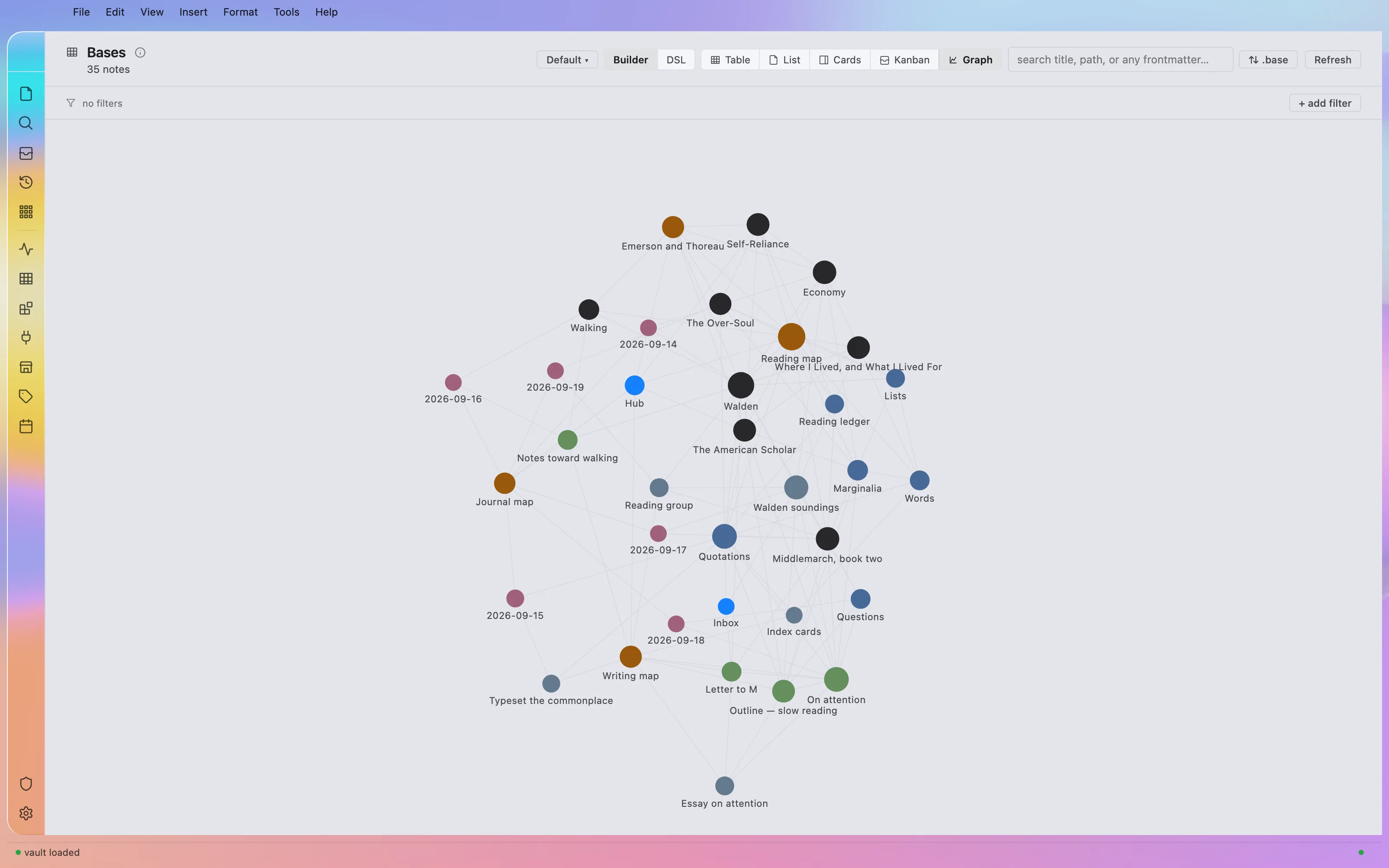
The window becomes a lens: on macOS the rail, file tree, tab capsule and note panel float as tinted glass with lit rims over your real, blurred desktop, while the note itself stays an opaque sheet of paper in San Francisco and New York. Light and dark, with a complete solid palette under Reduce Transparency and off macOS.
Install it
- Open the Store from the left rail in Solomon (or press ⌘9) and choose Themes.
- Find Liquid Glass and click Install. It lands in your vault’s
Themes/folder. - Choose it under Settings → Appearance. The default look is one click away there too.
Solomon is a free download for macOS. Get the app
- Mode
- Light and dark
- Type
- SF Pro Display
- SF Pro Text
- Palette
- Credits
This package is CSS and a manifest only. It bundles no images and no fonts, so it carries nobody else's work.