§ the idea
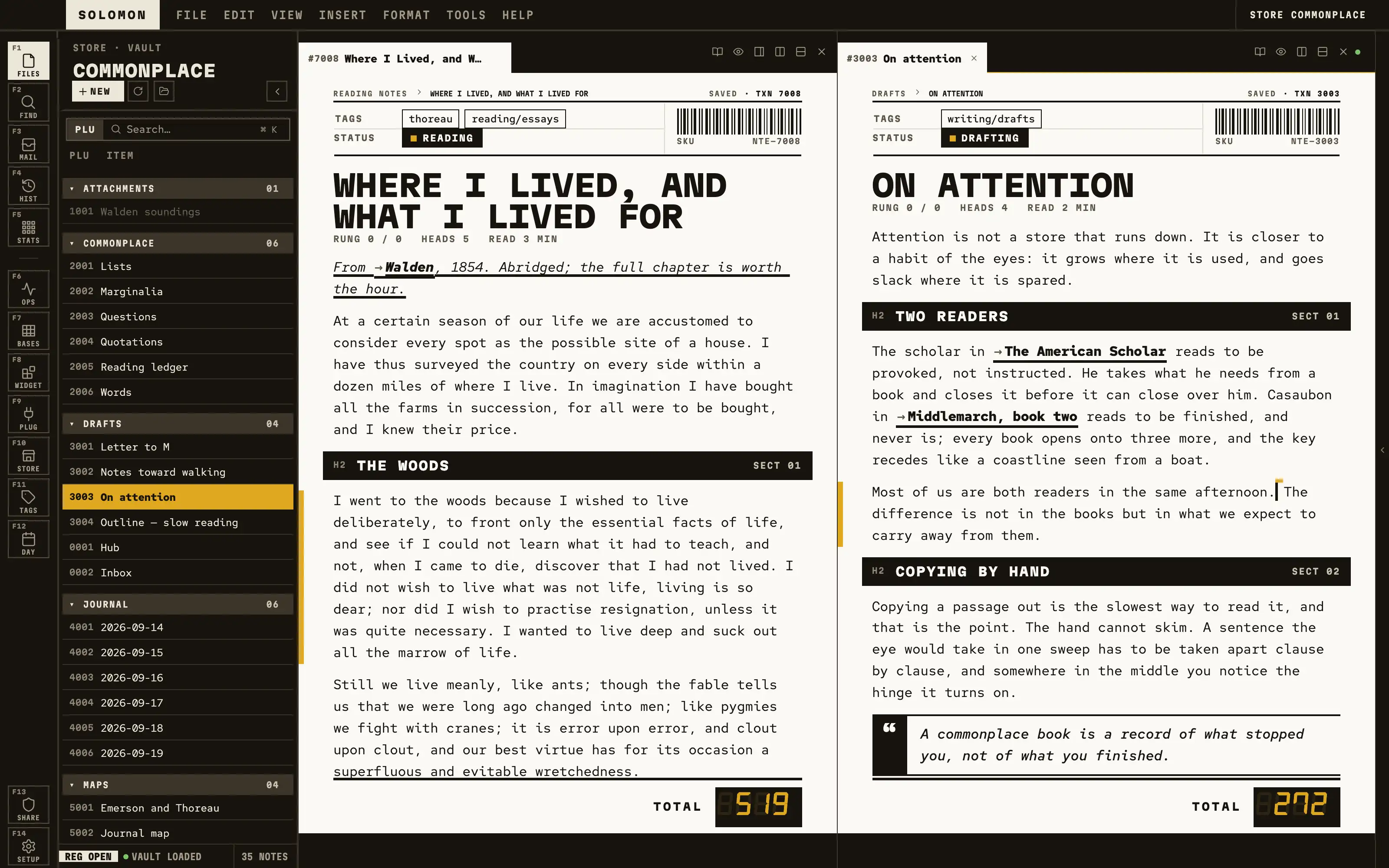
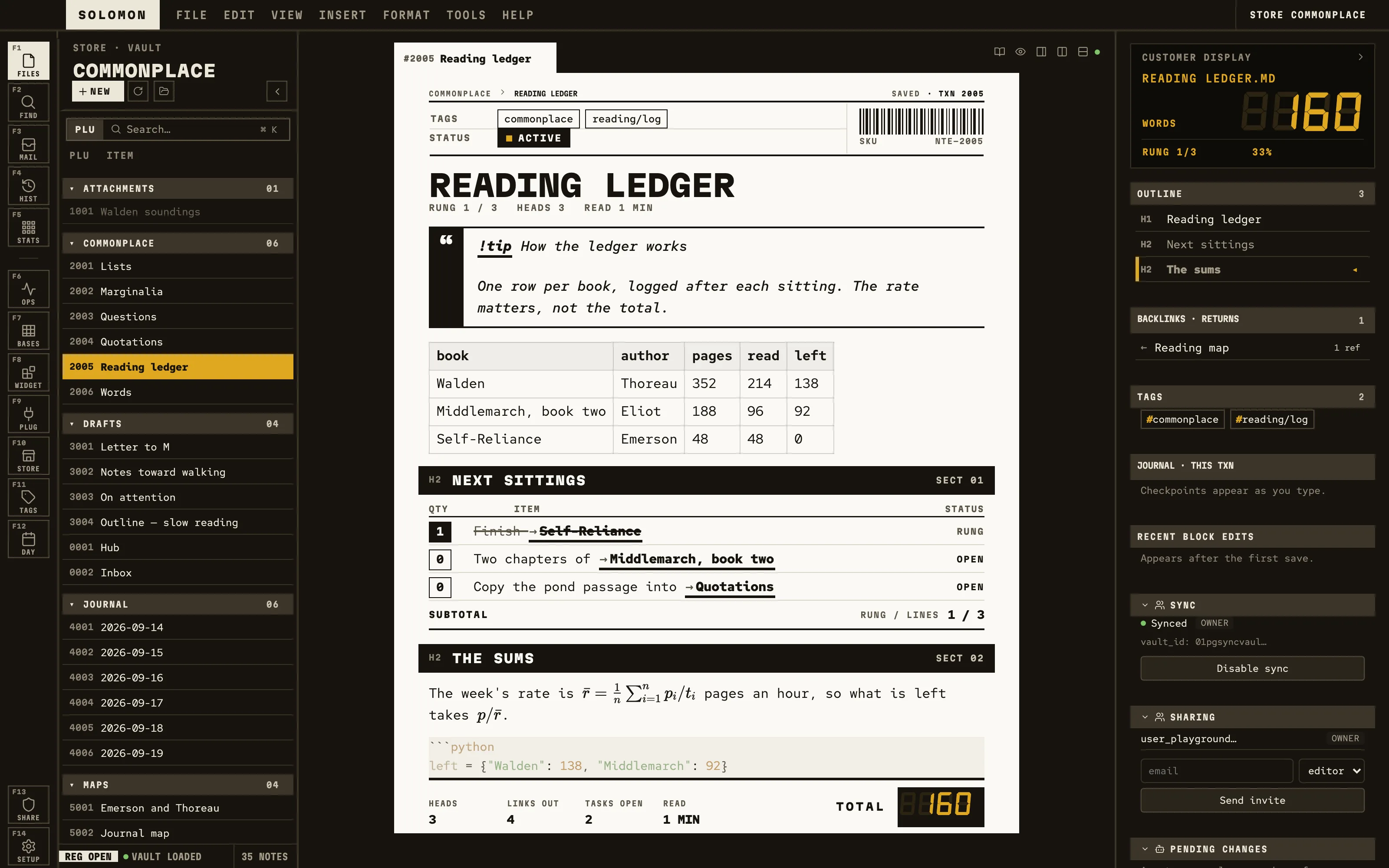
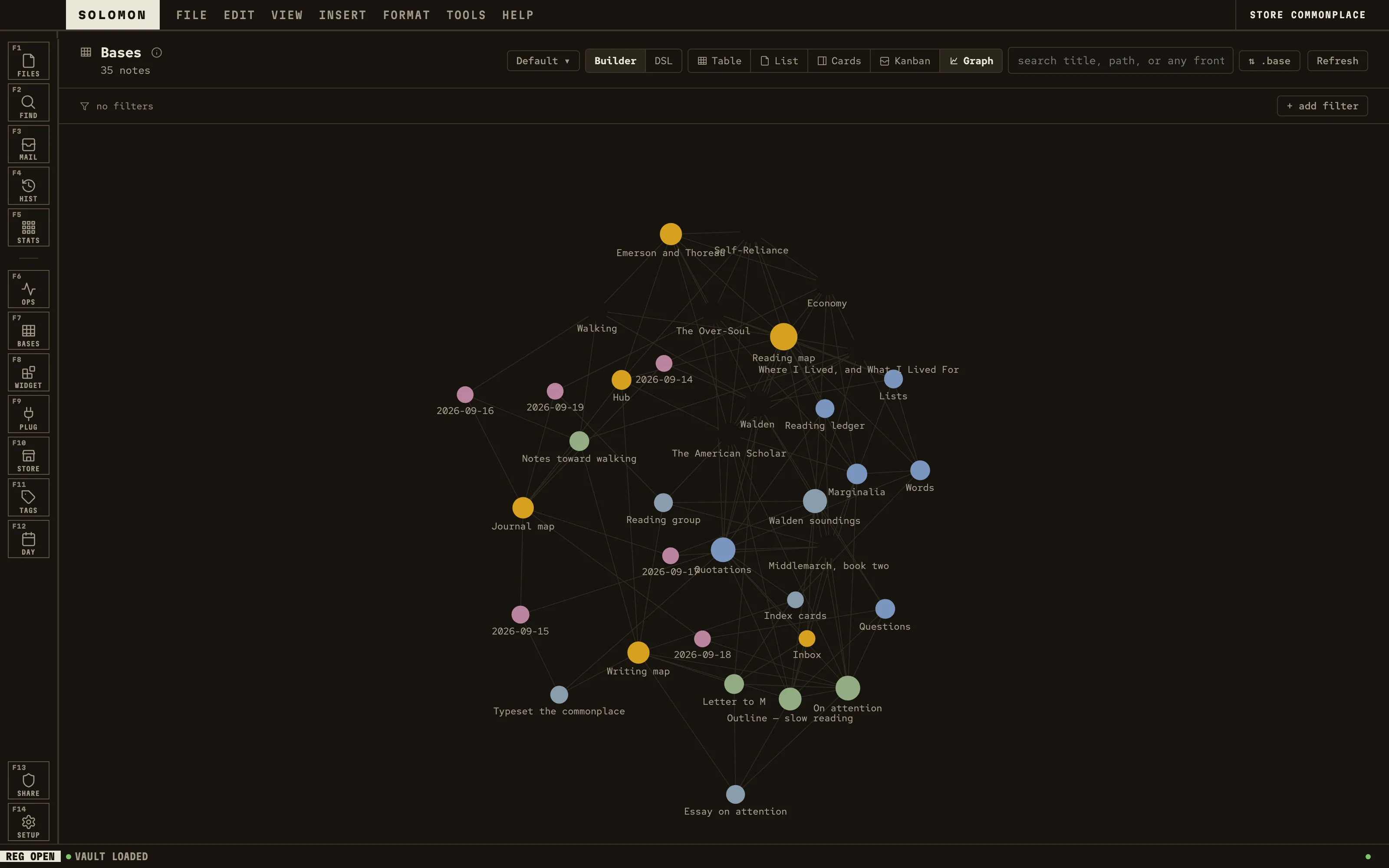
Your note rung up on a flat point-of-sale terminal: a dark counter, a square white transaction column, headings as inverted black bars, tasks as QTY/ITEM/STATUS line items, and the word count glowing as the TOTAL on an amber seven-segment display. Martian Mono and Red Hat Mono, one amber accent, no paper and no props.
Install it
- Open the Store from the left rail in Solomon (or press ⌘9) and choose Themes.
- Find Receipt and click Install. It lands in your vault’s
Themes/folder. - Choose it under Settings → Appearance. The default look is one click away there too.
Solomon is a free download for macOS. Get the app
- Mode
- Dark only
- Type
- Martian Mono
- Red Hat Mono
- Palette
- Credits
- SIL Open Font License 1.1
Receipt ships no pictures: every rule, bar, key, barcode stripe and display glass is flat CSS geometry written in theme.css. What it bundles is three typefaces, each under the SIL Open Font License 1.1. Nothing is fetched at runtime; the fonts live under assets/fonts/ and resolve against the theme folder.